ip
Wojak User Guide
Wojak is a desktop app for managing tasks, optimized for use via a Command Line Interface (CLI) while still having the benefits of a Graphical User Interface (GUI). If you can type fast, Wojak can get your tasks management done faster than traditional GUI apps.
- Quick Start
- Features
- FAQ
- Known issues
- Command Summary
Quick Start
- Ensure you have java 17 or above installed in your computer
- Download the latest .jar file from here.
- Copy the file to the folder you want to use as your home folder for your Wojak
- Open a command terminal,
cdinto the folder you put the jar in, and use thejava -jar Wojak.jarcommand to run the application. A GUI similar to the below should appear in a few seconds.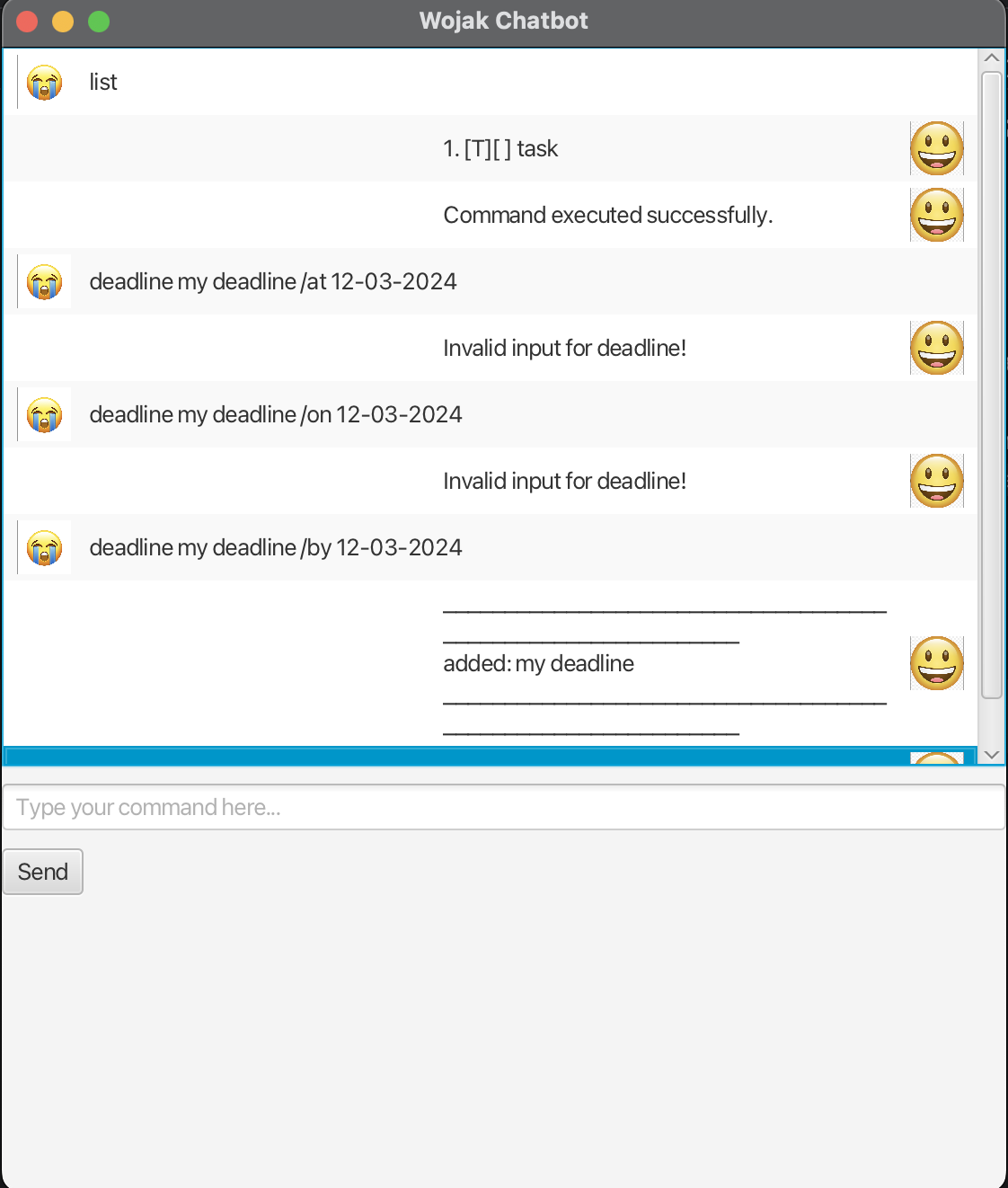
Features
- items in
<>are compulsory in the commands.- eg.
todo <your input>
- eg.
Adding a todo
Adds a todo into Wojak. Follow the example below and hit enter.
Format: todo <your input>
- Note, input must not be empty
Examples:
todo homeworktodo many things i want
Adding a deadline
Adds a deadline into Wojak. Follow the example below and hit enter.
Format: deadline <some deadline> /by <iso-8601 compliant date>
- Note, input must not be empty
Examples:
deadline some deadline /by 2024-10-01
Adding an event
Adds an event into Wojak. Follow the example below and hit enter.
Format: event <some event> /from <iso-8601 compliant date> /to <iso-8601 compliant date>
- Note, input must not be empty
- Also, no date validation logic, so anything goes.
Examples:
event some event /from 2024-10-01 /to 2024-10-22event some event /from 2025-10-01 /to 2024-10-22
Listing all tasks
List everything in your todo lists. Follow the example below and hit enter.
Format: list
Examples:
list
Find a task
Find a task (todo, deadline, event) that matches the search string. Follow the example below and hit enter.
Format: find <search string>
Examples
find some eventfind homework
Mark a task
Mark a task (todo, deadline, event) as done. Follow the example below and hit enter
Format: mark <index of task>
- List is not zero indexed, so don’t use
mark 0.
Examples
mark 1
Unmark a task
Unmark a task (todo, deadline, event) as undone. Follow the example below and hit enter
Format: unmark <index of task>
- List is not zero indexed, so don’t use
mark 0.
Examples
unmark 1
Delete a task
Delete a task (todo, deadline, event) from Wojak. Follow the example below and hit enter
Format: delete <index of task>
- List is not zero indexed, so don’t use
mark 0.
Examples
delete 1
Modify the DB
To modify where Wojak can persist data to and find the DB,
go to config.txt and type in a name of the file. You need to have
read, write and execute permissions in the folder.
Exiting the program
To exit the chatbot, type this command and press send
Format: bye
Examples
bye
FAQ
Q: How do I transfer my data to another Computer?
A: Install the app in the other computer and overwrite the empty data file it creates with the file that contains the
data of your previous Wojak home folder (the db.txt).
Known issues
Command summary
- Add todo, eg:
todo this is my todo - Add deadline, eg:
deadline some deadline /by 2024-10-01 - Add event, eg:
event some event /from 2024-10-01 /to 2024-10-22 - List tasks, eg:
list - Find a task, eg:
find deadline - Mark a task, eg:
mark 1 - Unmark a task, eg:
unmark 1 - Delete a task, eg:
delete 1 - Exit the program, eg:
bye